2026.07.23
News
MD770 PRO QMK Toolbox Update
Please go to "Technical Support - MD770 PRO" to download the Firmware file.
Go to https://github.com/qmk/qmk_toolbox/releases to download the official version of QMK Toolbox.
Please ensure you select the correct installation file for your operating system.
Launch QMK Toolbox. Use the "Open" dialog box next to "Local file" to locate the MD770 PRO firmware file (ending in .hex).
How to enter DFU mode:
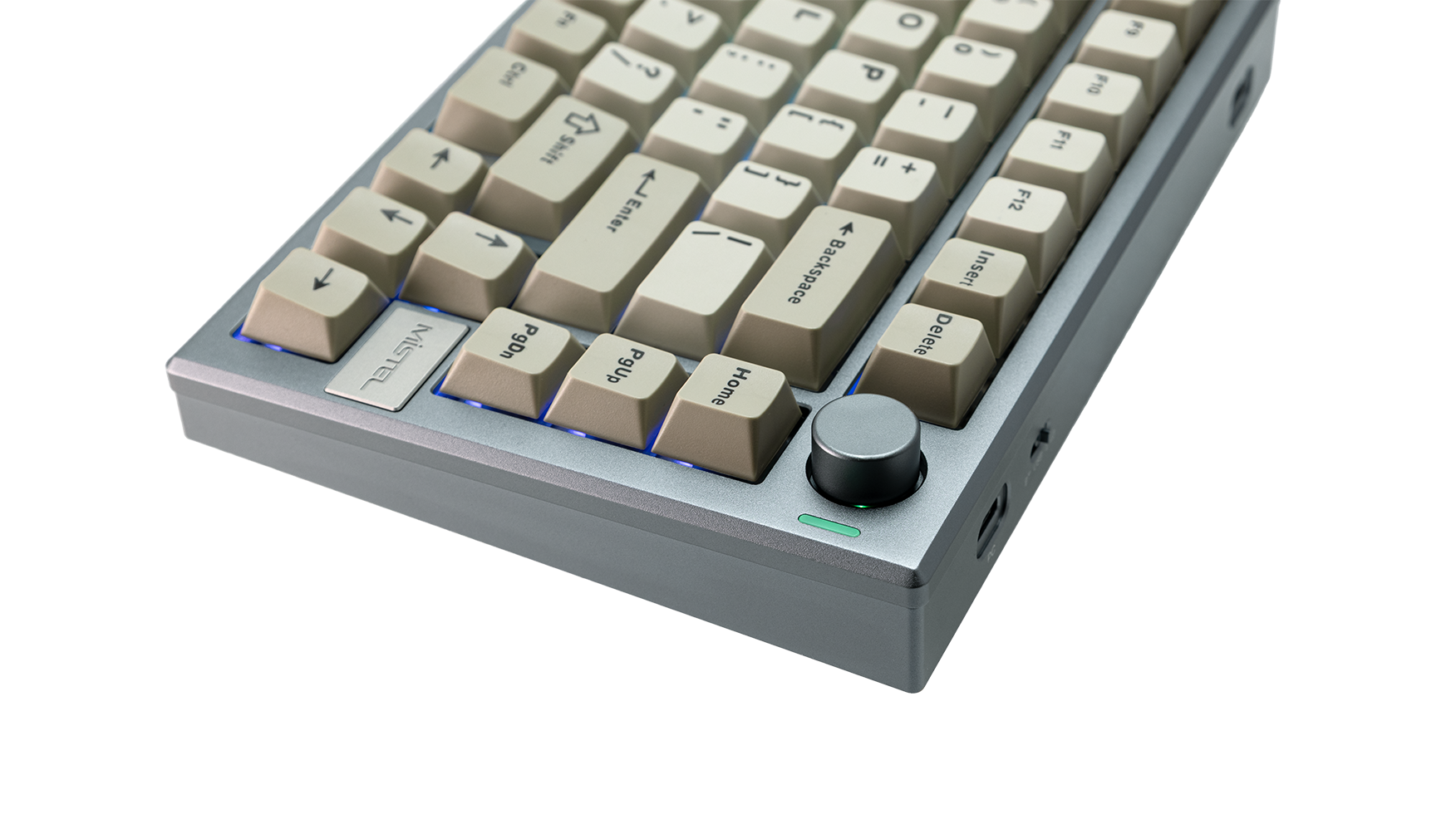
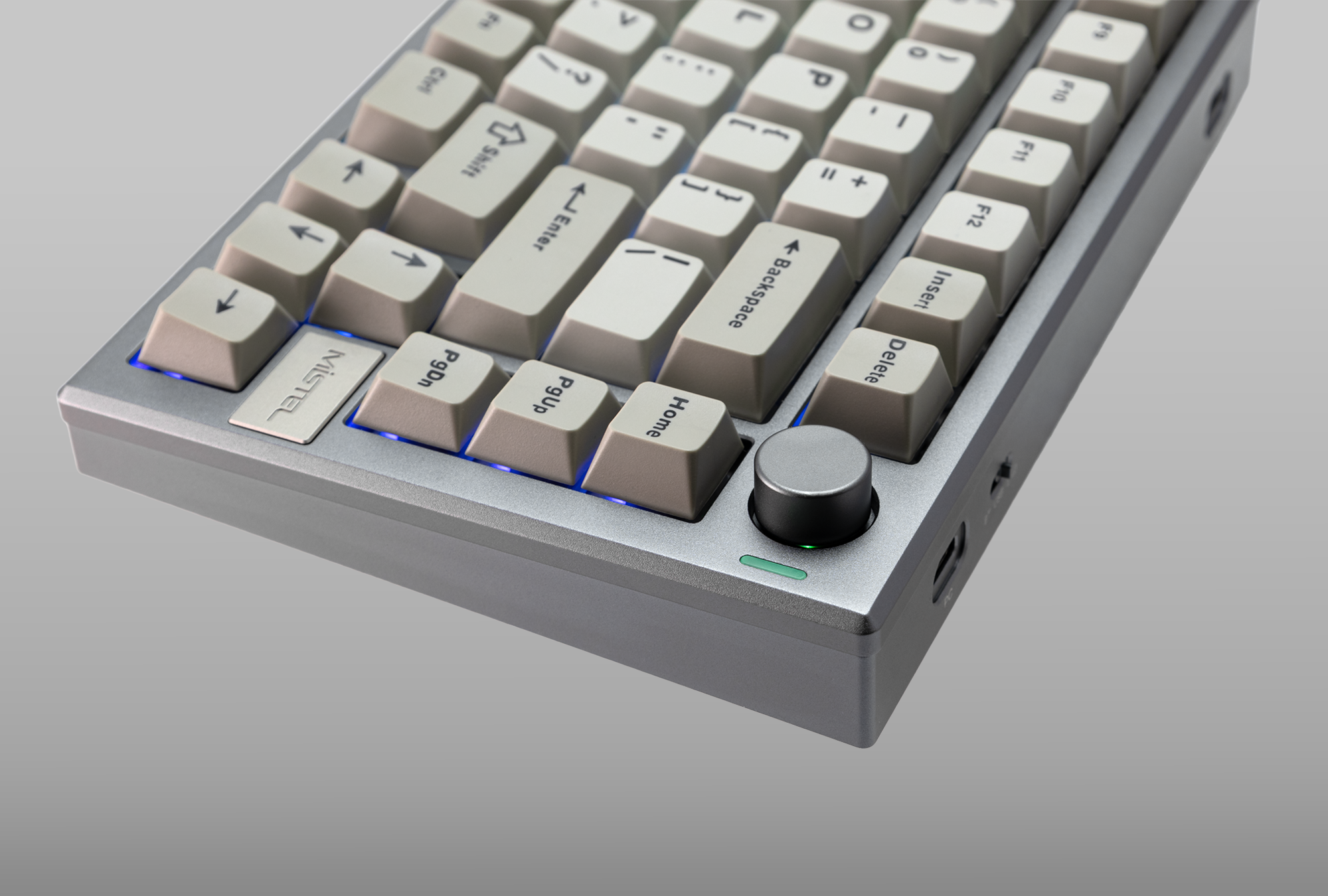
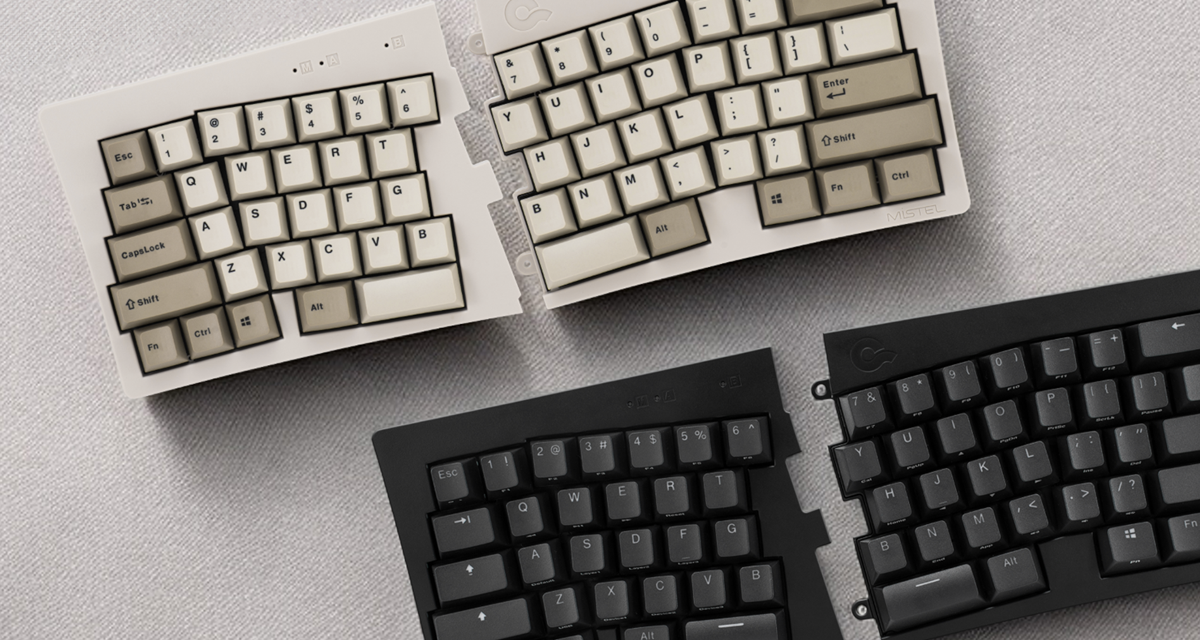
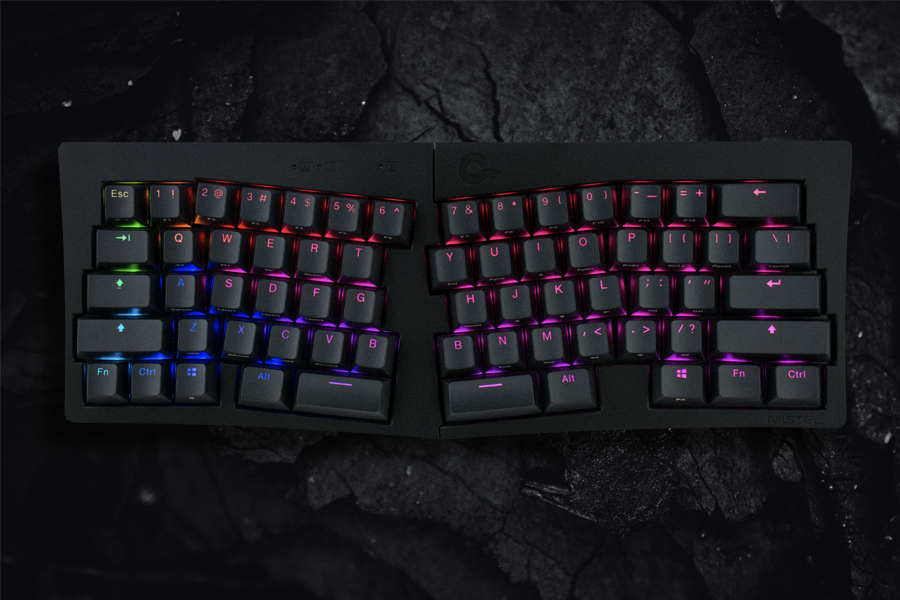
Right Keyboard (Standalone): Switch the keyboard to wired mode. Press and hold the "Home" key while connecting the keyboard to your host computer using the included cable. Once you see the yellow text in the console window (as shown in the image below), you may release the "Home" key.
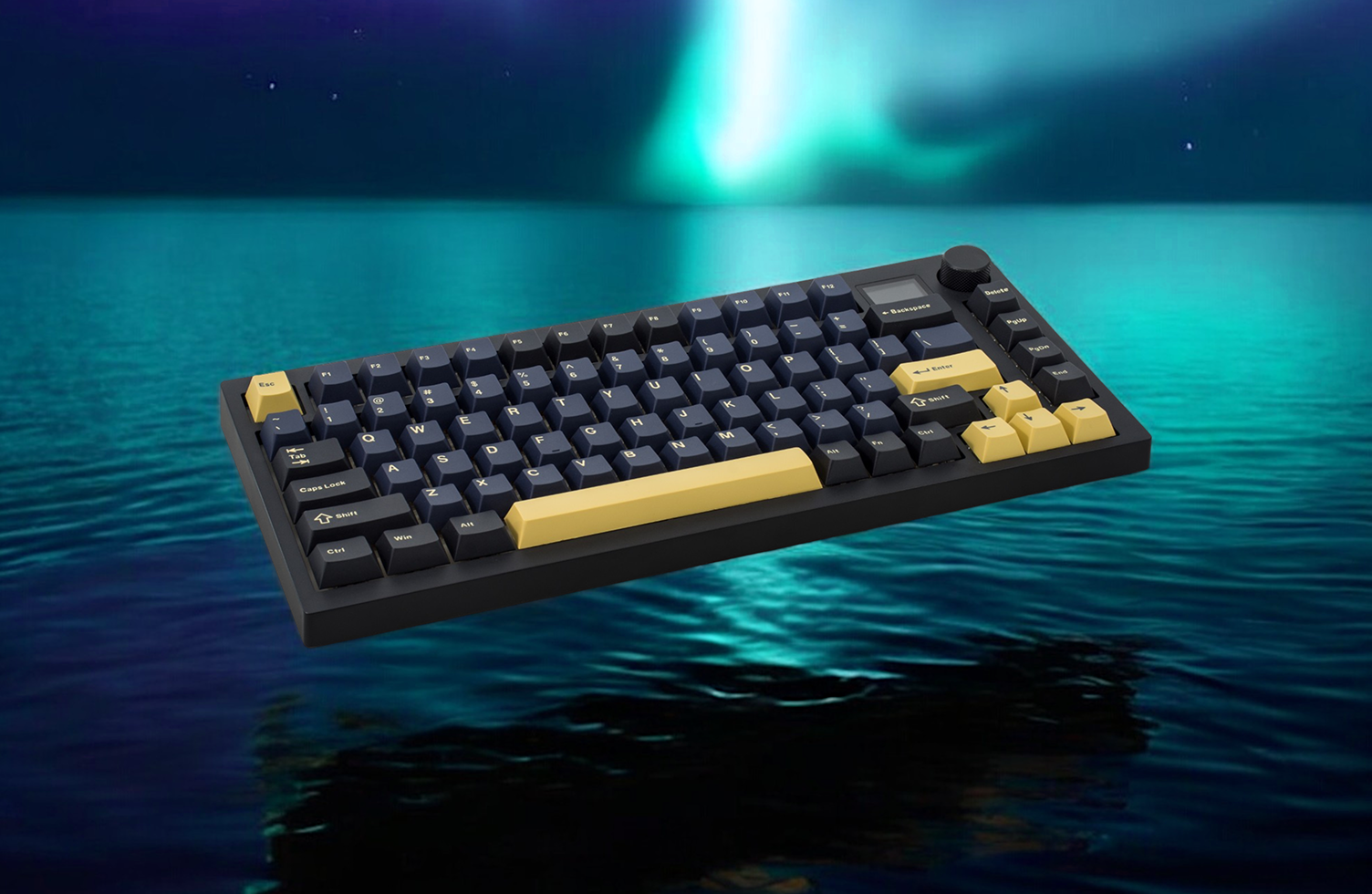
Left Keyboard: Press and hold the "Esc" key while connecting the keyboard to your host computer using the included cable. Once you see the yellow text in the console window (as shown in the image below), you may release the "Esc" key.
Note: The above operations must be completed in the exact order and manner instructed. If your keyboard is already connected to a cable, please unplug it before starting the process.
After successfully entering DFU mode, click "Flash" to start the firmware update. Wait until the console window displays "Flash Complete". Do not interrupt the update process in any way, and ensure the wired connection remains stable throughout.
Once the firmware update is complete, click the "Exit DFU" button at the top to exit DFU mode. You may safely disconnect the USB cable after the console window displays "...device disconnected...".
Note: Both the left and right keyboards use the same .hex file, and the entire update process must be completed independently for each side.